

Most businesses have that one spreadsheet. Over time it started doing far too much, extra columns, complex formulas, duplicate tabs, and half a dozen people who all use it slightly differently.
The creator knows exactly how it works. Everyone else struggles to remember which tab to update or which cells they shouldn't touch.
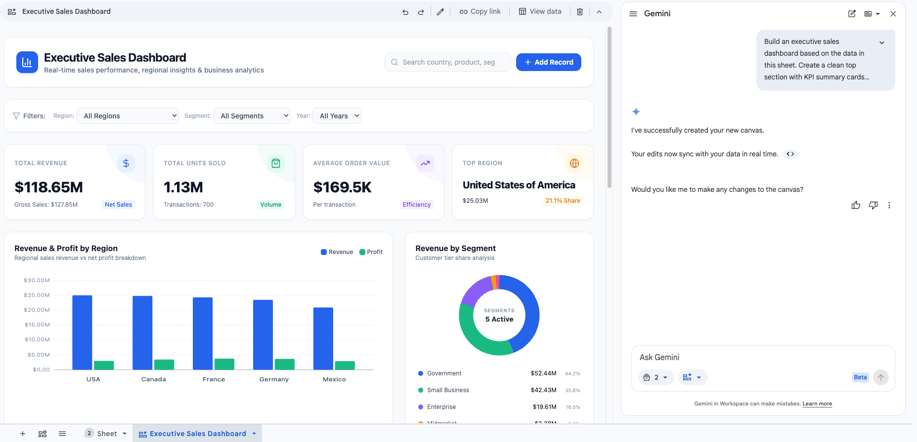
Google's answer is Sheets canvas, a Gemini-powered layer that turns that same tab into an interactive app, a dashboard, a Kanban board, a custom view, without moving your data anywhere.
Here's what we'll cover:
- What Sheets canvas actually is and how it works underneath the spreadsheet
- Where to find it, which plans include it, and its real limitations
- Three examples worth trying before you build anything more complex
- When Sheets canvas is enough, and when you actually need AppSheet
- A short playbook for rolling it out without breaking anything
What Is Sheets Canvas, and How Does It Work?
Sheets canvas is a Gemini-powered feature in Google Sheets that turns your existing tab data into an interactive, read-write app, without moving that data to another system. Unlike a chart or pivot table, which only let you read data, a canvas lets you work inside it directly.
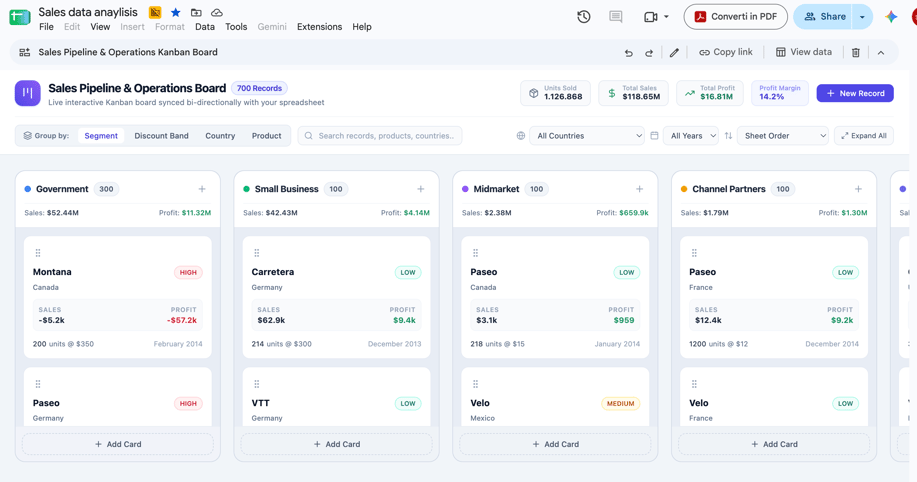
"Canvas" means a blank space where Gemini draws on top of your data. Drag a card from "In Progress" to "Completed" and the corresponding spreadsheet cell updates automatically. If a colleague edits that cell in the grid, the card moves right in front of you.
You can ask Gemini to build a dashboard showing quarterly budget impact across cost centres, or organise a task list into a Kanban view. Your first result doesn't have to be the final one either, keep chatting with Gemini to tweak the layout, design, or features. Asking it to "turn this dashboard into dark mode" works as a follow-up prompt on its own.
The canvas lives as a tab inside your spreadsheet and doesn't use a separate permissions system, it inherits the file's existing access rights. People with edit access can change data through the interface. Anyone with view or comment access can only look.
Where Do You Find Sheets Canvas, and Who Can Use It?
You might open Google Sheets right now and not see it. Google launched Sheets canvas in August 2026, and availability depends on your plan, admin settings, user configuration, and language.
It's enabled by default wherever Gemini in Sheets is active, covering Business Standard and Plus, Enterprise Standard and Plus, consumer Google AI Pro and Ultra, and the Google AI Pro for Education add-on. You'll find it in three places: the Tools menu, the Insert menu, or the canvas menu in the bottom bar.
Two setup steps first. Your administrator needs to enable Gemini in Google Sheets for the team.
Each user needs to turn on smart features individually: open Gmail, click the Settings gear, choose General, scroll to Google Workspace smart features, tick what you need, save. For European users, Google turns these off by default, worth checking before assuming you're missing a licence you actually have.
A few real limits to know before you rely on it:
- It only works on the web, and only for accounts set to English, no mobile app support yet, and no announced date for other languages
- A canvas reads data from one tab at a time
- It won't work on files stored on third-party cloud storage, or used offline
- It pauses if you've turned off download, copy, or print options
- Google applies per-user usage limits to canvas creation and editing
If you're working out which Workspace plan actually covers the Gemini features you need, our Google Workspace resources page is the place to start.
3 Examples of What You Can Do with Sheets Canvas
Look at a spreadsheet in your business that works well but needs an expert to interpret, that's usually where canvas earns its place:
- Budget reviews: a finance team reviewing quarterly numbers used to mean a controller duplicating the sheet or altering values to test scenarios. With a canvas, they get a view built for that decision while the core data stays untouched.
- Field team tracker: ask Gemini to "create a tracker to visualise assignments by region" and you get a regional view where managers reassign work while the main sheet updates live underneath.
- Interactive meetings: brainstorming, ranking priorities, or collecting team feedback on a sticky-note canvas keeps the discussion and the notes in the same place as the spreadsheet.
None of these started as a request for a complex app. They all started with data that already existed and just needed a clearer layout. If this resonates, it pairs well with our guide on Google Gems for teamwork.
Sheets Canvas vs AppSheet: Which Do You Need?
The answer depends entirely on the problem you're solving, not on which tool sounds more advanced.
Sheets canvas builds a view from a single tab. It's fast to build, easy to share, and works best when you want to read and update spreadsheet data more easily.
When you need automation, notifications, multi-step workflows, or multiple data sources, that's AppSheet territory, we've covered that approach in our guide on building custom no-code apps with Google AppSheet.
| Business Need | Sheets Canvas | AppSheet |
| Quickly build an interface on spreadsheet data | ||
| Multiple data sources | ||
| Automations and notifications | ||
| Approval workflows | |
|
| Mobile app support | ||
| Custom app permissions |
Before rolling it out company-wide
To get started, we recommend identifying two or three complex spreadsheets, testing them on a canvas with the people who use them every day, and measuring whether manual steps, parallel versions, and the time required to read or update informationare reduced.
From an administrative standpoint, the key areas to manage are access to Gemini’s features within Workspace services and the configuration of smart features from the admin console.
From a cultural perspective, it’s important to remember that Gemini generates suggestions that may be inaccurate: a canvas should be verified just as you would verify a formula written by a colleague, and personal, confidential, or sensitive data should not be included in requests when using a feature in the experimental phase.
For those who want to solidify the basics first, the overview of how to use Gemini in Google Workspace remains a helpful resource.
Your next canvas can start from a spreadsheet you already use every day. Let’s find out together if Sheets canvas is the right solution for your business.
Where Does the Real Value of Sheets Canvas Lie?
The strength of Sheets Canvas isn’t simply that Google Sheets can now create applications.
For years, we’ve adapted the way we work to the structure of spreadsheets. If a piece of data was in column T, we learned to go to column T. If updating a project required three filters, we learned those three filters. If only one person could read a dashboard, that person ended up attending every meeting.
Sheets Canvas tries to reverse this logic.
Data can continue to be organized in the way that’s most useful for the model, while the interface can adapt to the way people actually work.
This doesn’t mean every spreadsheet has to be transformed. It means that, before building a new system, it’s worth asking one more question today.
Is the problem really the spreadsheet, or is it the way we’re forced to use it?
When the answer is the latter, Sheets canvas can be a surprisingly simple solution. When, on the other hand, more complex processes, automations, roles, and integrations come into play, it’s probably time to look beyond the canvas.
You don't always need to stay inside Google Workspace either. If you have a specific business process, a dedicated platform can serve you better, Asana for project management, HubSpot for sales and CRM, Klaviyo for marketing automation.
Rolling Out Sheets Canvas Without Breaking Anything
- Start small. Pick two or three complex spreadsheets your team actually uses daily, and test a canvas on those first. Measure whether it actually cuts manual steps, duplicate versions, and review time.
- Sort admin access before rollout. Manage who gets access to Gemini features in Workspace through your admin console, and check smart-feature settings while you're there.
- Treat AI output like a colleague's formula. Gemini generates suggestions that can contain errors, verify a canvas the same way you'd check anyone else's work. Keep confidential or sensitive personal data out of experimental features.
Where the Real Value of Sheets Canvas Lies
The real value here isn't that Google Sheets now builds apps.
For years, we adapted our working style to the spreadsheet's layout: if data lived in Column T, we scrolled to Column T, if updating a project needed three filters, we learned the filters, if only one person understood a dashboard, that person had to be in every meeting.
Sheets canvas flips that. Your data stays structured in the spreadsheet, the interface adapts to how your team actually works, not the other way round.
You don't need to transform every spreadsheet you own. Just ask yourself one question first: is the spreadsheet actually the problem, or is it how you're forced to use it?
When it's the second one, Sheets canvas is a genuinely simple fix. When you need complex workflows, roles, and integrations, that's your sign to look past it.
power2Cloud guides businesses through Google Workspace changes like this one, focused on the practical use case before the technology. Sometimes you need a better way to interact with one sheet.
Sometimes you need AppSheet, custom automation, or a wider process redesign, and if you want a second opinion before your team spends time on either, we'll evaluate it with you.